 Technology
Macintosh
Tips
Technology
Macintosh
Tips
Troubleshooting
Utilities
Routine Maintenance
Symbols and Icons
status icons from support.apple.com/em-us/HT207354

iPhone Icons: Home Screen & Control Center Symbols & Meanings (2022) | iPhoneLife
Why IsnŐt There A Standard Share Icon?
Hamburger button - Wikipedia
Interface, Circular, button, symbol, more, Circle Vol 2, three, Three Dots, dots icon
iOS 15 Hidden Features We Bet You Didn't Know About cnet
Initial Setup:
System Preferences > Sharing > Firewall (turn on)
System Preferences > Spotlight (search preferences)
See System Prefs for more
Find saved passwords:
Open Keychain Access.app in Applications/Utilities
or type CMD-Space to open spotlight and enter Keychain

Open local Items on the upper left
Find mcbridecabin-5G
or search for mcbridecabin in the search box

double-click it
Click the "show password" box

you have to enter your admin password

You then have to enter your Username and admin password
(Your username is in System Preferences under the Apple menu
in Users and Groups.
The name next the house icon in finder under Macintosh HD also worked)
Check microsoft.com/mac/downloads.aspx for Office Updates
Every couple of months - Battery Charging and calibration on laptops.
Run cron jobs manually:
1. sudo /etc/daily
2. sudo /etc/weekly
3. sudo /etc/monthly
Important Unix Files
/etc/crontab - Jobs that run automatically (usually at night)
/var/log - System Log files
/Volumes - External disks
Essentials
Essential But Hard TO FIne Macintosh Software and Advice - Randy Singer - macattorney.com 2023
The Apple Groups Team (TAGteam)
www.applegroups.org
deast@applegroups.org
DiskWarrior
Tech Tool Pro/DiskStudio
Cocktail
YASU
Drive Genius PRO247 (25% discount to all MUGS
TinkerTool
Mac Tracker
PrintSetupRepair
unexpected quit document for 10.3x
BootCD
mac.about.com
macfixit.com
Suitcase
fontfinagler
FontDoctor
www.macsimumnews.com or liveinvite.com/macsimumnews/
Critical Utilities
comp.sys.mac.apps/
Troubleshooting
Keyboard Shortcuts - Special Key sequences
Symbols/Notation:- Command Key (Apple Key)
- Option Key
- Control Key
- Shift Key
- Caps Lock

- Escape Key (ISO)
- Power
- Tab Key
- Eject
- Delete Special Key Sequences
Misc
OS X Performance tuning for G3 Macs
HDMI monitor won't wake up after sleep. Some suggestions in forums
- Shake mouse
- Hit volume function key
- Option click displays in preferences.
Free up space and Add to iCloud drive
How to free up storage space on your Mac
Add your Desktop and Documents files to iCloud Drive
Fonts
See Fonts Page.
Installing upgrades
- Run disk utility, Verify disk and Repair permissions.
- File Backup - Synchronization
- Remove all peripherals (optional
- Check if you need any drivers or firmware upgrades for third party peripherals attached.
- Make sure automatic Energy Saver settings for hard disk are turned off. If the hard disk spins down while the update is being performed, the update may not complete.
- Check to see if any Appl. need to be upgraded
- When installing the update, and this has been true at least through 10.3.9, it has been recommended that you always use the "Combined" (Will update from older versions) instead of the "Delta" or "Software Update" (updates from last versiion) version of the Update.
Restoring Library Preferenes, ...
How to transfer Apps to a new Mac
Creating a Boot disk
Get a Firewire drive. (USB 2.0 drives will backup, but won't boot.)
Use DiskUtility or Carbon Copy Cloner to create a backup
- Once every month or every other month do a full backup to an external drive. Turn on and plug in the external drive.
- Open Disk Utility (in Applications>Utilities)
- Click on your computer's main hard drive (the one with Mac OSX installed on it) in the left-hand column in Disk Utility. (Click on the same name as the drive name on your desktop).
- Click the 'Restore' tab (Mac OSX 10.3 Panther required).
- Drag your main hard drive into the 'Source' white field.
- Drag your external FireWire drive into the 'Destination' white field. (make sure any other data on your FireWire drive is not the same name as anything on your main OSX drive, and that you have deleted any previous full backup by dragging everything to the trash and emptying it.
- Click 'Restore' and it will copy all data across to your FireWire drive.
- When it is finished, Go to System Preferences and click on Startup Disk, and select the External FireWire drive, then restart and make sure the computer is able to boot from the external drive. If it can, then everything went well, and you can unplug the FireWire drive.
- To restore (if you ever need to do so), do all these steps, except hold down the 'Option' key at startup and choose to boot off the external FireWire drive, and put the FireWire drive into the 'Source' field, and your main drive into the 'Destination' field.
To fix major problems.
Backup and reformat disk.
Use migration assistant.
Freeing Disk Space
Freeing space on your Mac OS X startup disk
Root Password / Superuser
system/library/coreservices/directory utility
edit>enable root user
Security
OS X Security Configuration Guide (NSA)
Wireless Network
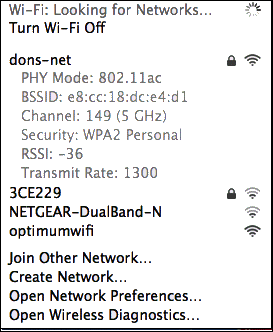 Press the Command key on your keyboard and mouse-click on the AirPort icon in the menu bar to get details about the connection.
RSSI: The 'Received Signal Strength Indication' shows the strength of your signal. Closer to 0 is better.
Transmit Rate: The actual speed at which data is being transmitted between your access point (router) and your computer.
MCS Index: This is a number that corresponds to protocols used to encode the radio signal.
At the bottom of that menu is an option called 'Wireless Diagnostics'. Select it to open an app with the same name.
See:
Mac OS X Helps Optimize Your Home Wi-Fi Network
See network speed in Mac OS X | www.howtogeek.com
My Network Tests
See:
How to Create a Bootable Backup of Mac OS X (Cloning Mac OS X disks)
See network speed in Mac OS X | www.howtogeek.com BACKUP STRATEGIES FOR OSX
The X Lab
Record video
Video screen capture support.apple.com/en-us/HT208721 Cmd-Shift-5 Open QuickTime Player from your Applications folder, then choose File > New Screen Recording from the menu bar. You will then see either the onscreen controls described above or the Screen Recording window described below. The 5 Best Mac Screen Recorder Apps for Capturing Your Screen | MakeUseOf.com 1. screen flow $149 2. Snagit $50 3. 3. Camtasia $249
See Other tips at:
14 Solutions for When Your iPhone DoesnŐt Ring for Incoming Calls
Picture Photo Tips
Mac OS X updating FAQ
Powerbook support at Apple
Mission Control (F3 of 4 finget swipe up) www.apple.com/business/videotips www.apple.com/pro/tips www.apple.com/dotmac www.macsurfer.com crucial.com RAM Pay for help linda.com - training www.vtc.com$30/mo.
Air Print Printing to a wireless printer
Other Links:
..Step by Step to fix your Mac | Apple Support Communities
OS X Security Bascis | Khürt Williams presentations | SlideShare
OS X Maintenance And Troubleshooting
Mac Info Use your Mac as a wireless AP at https://docs.info.apple.com/article.html?path=Mac/10.7/en/mchlp1540.html&login=emailYour Guide To The Awesome New Features Of iTunes 11 | MakeUseOf.com
last updated 6 Jan 2008